 Chatactor Docs
Website Integration
Adding your chatbot to your website puts a chat bubble in the bottom right corner of every page. Visitors click it and get instant answers from the knowledge base you trained, without leaving your site. This guide shows you where to find your embed code and how to add it to your website.
Before we start
- Make sure your chatbot already has data sources added and trained from the Data Source tab. Without a knowledge base the chat bubble will appear but the bot will have nothing to answer from.
- You need to be able to edit the HTML of your website, or use a theme or plugin that lets you insert code into the <head> section of your pages.
- Every chatbot has its own embed code containing its own botId. If you have more than one chatbot, make sure you copy the code from the chatbot you actually want on your site.
Start Integration
-
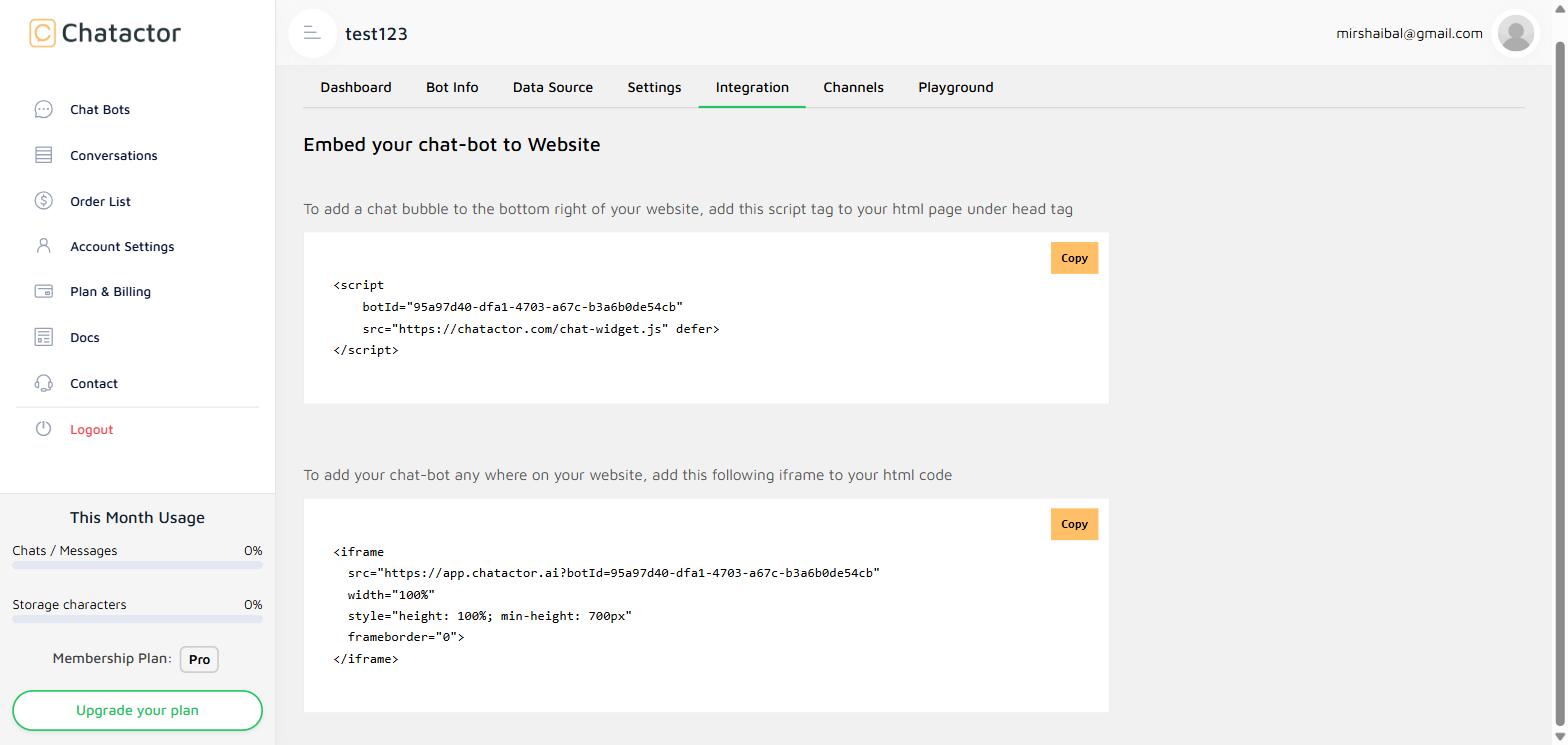
Open your chatbot and navigate to the Integration tab. You can also reach the same screen from the Channels tab by clicking Manage under Website.
-
The first snippet is the chat bubble code. Click Copy to copy it to your clipboard. It looks like this, with your own chatbot's botId:
<script botId="your-bot-id" src="https://chatactor.com/chat-widget.js" defer> </script> -
Paste the snippet into the <head> section of your website, just before the closing </head> tag:
<head>
    ...
    <script
        botId="your-bot-id"
        src="https://chatactor.com/chat-widget.js" defer>
    </script>
</head>
Add it to every page where the chat bubble should appear. Most websites have a shared layout, template or header file, so adding it in one place is usually enough. If you are using a website builder or CMS, look for a setting such as "Custom code", "Header scripts" or "Insert code in head". -
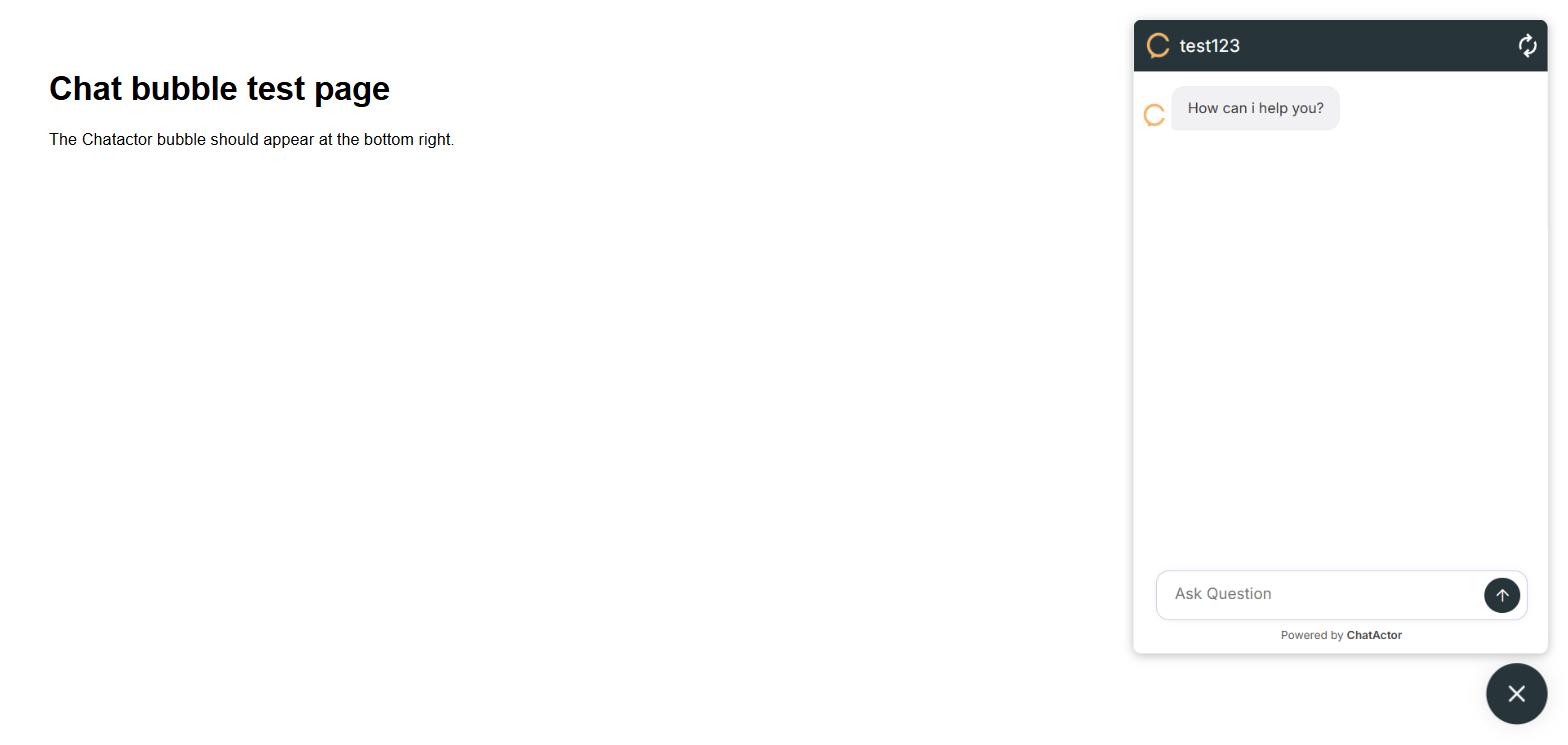
Save and publish your website, then open it in your browser and reload the page. The chat bubble appears in the bottom right corner. Click it to open the chat window and ask a question to make sure your chatbot answers.
Placing the chatbot inside your page
If you would rather show the chatbot as part of the page instead of a floating bubble — for example on a dedicated support page — use the second snippet from the Integration tab. It embeds the chat window directly wherever you paste it:
<iframe
    src="https://app.chatactor.ai?botId=your-bot-id"
    width="100%"
    style="height: 100%; min-height: 700px"
    frameborder="0">
</iframe>
This snippet goes in the body of your page, at the exact spot where you want the chat window to appear. You can adjust the width and the min-height to fit your layout.
Customising the chat bubble
- Open the Settings tab of your chatbot to change the Color Theme, which controls the colour of the bubble and the chat window header.
- Upload a Bot Avatar from the same screen to show your own logo in the chat window. The preferred size is 100px X 100px.
- The name shown in the chat window header is your chatbot's name.
- Use the Bot Behaviour Instruction box to set the tone, language and personality of the answers.
- Remember to click Save Settings, then reload your website to see the changes.
If the chat bubble does not appear
- Check that the snippet is inside the <head> section and that the botId attribute was not removed or changed when you pasted it.
- Do not remove the defer attribute from the script tag.
- Clear your browser cache and hard refresh the page. If your site or host uses caching, clear that cache as well so the updated page is served.
- Add only one chat bubble snippet per page. Adding the code twice, or adding two different chatbots to the same page, will cause unexpected results.
- Make sure your website is served over https, since browsers block scripts loaded over a different protocol.
Every conversation from your website is recorded and can be reviewed later from the Conversations page of your dashboard, so you can see what your visitors are asking and how your chatbot responded.
Congratulations! You finished adding your Chatactor's chatbot to your website, your chatbot is now ready to answer questions from your visitors!